How To Fix Controller Stick Drift
In this article
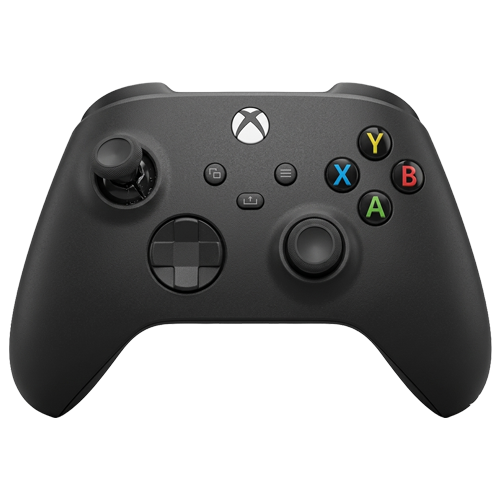
The Stick Drift issue in PS5 is quite notorious as it often happens to a lot of devices. This problem is not just limited to the PS5, but also impacts Xbox, Nintendo Switch and PS4 controllers.
It occurs because the controller analogue sticks move on their own and make characters’ movements and actions unintended in the games. Fortunately, we have a solution on how to fix controller stick drift by yourself.
This guide will discuss methods to resolve stick drift by providing a detailed step-by-step replacement of the analogue thumbstick.
What Is Stick Drift?
Controller drift or stick drift refers to that issue in which the analogue stick on the controller registers any input without being touched.
It causes unwanted movements during the gameplay.
The reason behind this issue could be wear and tear, dust or defective components
Here’s how to apply the right fix to regain your controller’s functionality.
Steps To Fix PS5 Controller Drift Yourself
Before any method, it’s always better to test and confirm whether your controller has a stick drift.
For testing:
- Turn on your PS5 and go to Settings.
- Go to Accessories > Controllers > Controller Settings.
- Select Test Input Devices to check the analogue sticks. Move them in all directions to check if they register any unintended movements.
Adjusting the Joystick Deadzone
After testing successfully and if stick drift is detected, the first thing is to try to adjust the joystick deadzone.
- Go to Settings and select Accessories.
- Choose General and then Joystick Deadzone.
- Increase the deadzone from anywhere 10-20%. It helps in knowing how far the stick needs to move before it registers input.
Recalibrating the Analog Sticks
It’s an important step before disassembling the controller as recalibration can reset the controller’s understanding of the stick’s neutral position.
- Stay in the Controller Settings menu.
- Select Calibrate Control Sticks.
- Follow the on-screen instructions to move the sticks in all directions. This helps the PS5 recalibrate and reset the neutral position.
Cleaning the Analog Sticks
Dust and debris can cause stick drift as well. Cleaning the controller can often resolve the issue.
- Power off the controller and unplug it.
- Use compressed air to blow out any dust around the base of the analogue sticks.
- Apply isopropyl alcohol lightly to a cotton swab and clean the base of the sticks.
Disassembling the PS5 Controller
If the issue persists, you should replace the analogue stick.
Note: Disassembling the controller is a delicate process and you must follow the instructions closely.
- You need a Phillips screwdriver, plastic prying tools, and a replacement analogue stick.
- Remove screws from the back of the controller.
- Use the prying tools to gently open the controller casing, starting at the seams and working your way around.
For a more careful and visual look, watch this video to better understand the process.
Once it is open:
- Carefully disconnect the ribbon cables connecting the two halves of the controller.
- Locate the analogue sticks on the mainboard.
- Use a soldering iron to desolder the faulty analogue stick, noting the positions of each connection.
With the old thumbstick removed:
- Place the new analogue stick into position on the mainboard.
- Solder the connections.
- Reconnect the ribbon cables between the controller halves.
Reassembling and Testing the PS5 Controller
After replacing the analogue stick:
- Snap the controller halves back together. Make sure that all internal components are aligned correctly.
- Reinsert and tighten all screws.
- Power on the controller and connect it to your PS5.
- Test the analogue sticks in the Controller Settings menu again to check if the controller in working properly.
Bonus Stick Drift Tips
Use External Calibration Tools
You can also consider taking the help of third-party calibration tools. They can help in more precise calibrating.
- Visit a trusted calibration website such as https://hardwaretester.com/gamepad which is compatible with the PS5 controller.
- Connect the controller to a PC using a USB cable.
- Follow the software instructions to recalibrate the sticks and test it again.
Check Software Updates
It is recommended to make sure that your console has up-to-date software.
For this:
- Go to Settings > System > System Software.
- Select Console Information to see the current version.
- If an update is available, follow the on-screen instructions to install it.
Message from our sponsors
What our customers say
Further reading

Install Xbox One OS On New Hard Drive – 2025 Guide
Install Xbox One OS on new hard drive – 2025 Guide In this article The

How To Fix Controller Stick Drift
How To Fix Controller Stick Drift In this article The Stick Drift issue in PS5

P55 Faulty Power Supply and How to Fix It
PS5 Faulty Power Supply Fix Guide In this article The Sony PlayStation 5 or PS5

Is Your Xbox One Running Slow ?
Is your Xbox One running slow? In this article Have you ever been knocked off

Xbox One offline update
How to perform an Xbox One offline update In this article Where would games consoles
Get in touch