 Skip to content
Install Xbox One OS on new hard drive - 2025 Guide
In this article
The Xbox One S and Xbox One X consoles have been with us for over 10 years now, so it is not surprising that their internal hard drives need some care and maintenance.
With new Xbox operating system (OSU) releases almost monthly from Microsoft, it is always good practice to have the latest version installed – but what if you have a faulty hard drive and cannot install the latest update or your Xbox hard drive is not responding at all?
In this guide, we walk you through the process of installing the latest OSU1 file from Microsoft on to your new super fast, fresh hard drive.
How to install Xbox One OS on new hard drive - the basics
Let’s start with a couple of important points – when installing a new hard drive into an Xbox One S or Xbox One X, the maximum capacity the Xbox will recognise is 2TB.
Any larger than that, you are simply wasting your hard earned money as the Xbox system architecture not being able recognise 2TB sectors.
Second point is form factor – only a 2.5 inch hard drive will fit into the Xbox One S and Xbox One X.
Now that is out of the way, to install Xbox One OS on new hard drive you will need a USB memory stick (Flash drive) which is at least 8 GB in capacity (the latest version of the Microsoft OSU1 file is 5.2GB!).
It is always best to use a blank USB memory stick rather than one which has all your family photos on as we will need to make sure it is formatted a certain way.
The Microsoft Xbox OSU Files
To Install Xbox One OS on new hard drive, we need to download the Xbox system files, also know as the OSU1 file.
The OSU1 files are the actual Xbox operating system files and you should only use the latest version from Microsoft.
To save you searching the Microsoft website, we have added a direct link below – this link downloads the latest OSU1 files directly from Microsoft and will be the latest version available.
Tip – If the download fails to start, right click the button below and select “Save Link As”
Getting your new hard drive ready
Now, you have your nice new hard drive, but it must be totally blank – nothing on it at all. Most brand new hard drives will already be blank.
So, if you have “borrowed” a hard drive from an old laptop (we have all been there) then you will need to connect the hard drive to a PC or Laptop and run Windows Disk Management to delete all data from the hard drive.
To connect the hard drive to your PC you will require a USB Hard Drive Caddy – there are plenty of options on Amazon or eBay, just search “2.5-Inch SATA to USB 3.0 External Hard Drive Enclosure“
Place the hard drive into your USB Hard Drive Caddy and connect to your PC.
After a few moments, your PC will recognise the hard drive.
Now run Windows Disk Manager by clicking your Windows Start button and searching “diskmgmt”
Now click on “Create and Format Hard Disk Partitions”
Once in Windows Disk Management, simply find the hard drive you have just connected, and delete ALL partitions on the hard drive.
Advertisment
Copy the files to USB
Hopefully by now the OSU1 files will have finished downloading. Now it is time to copy them to your USB memory stick.
First things first we need to prepare the USB memory stick so insert your USB memory stick into your PC or Laptop and format it to NTFS (it must be NTFS to work).
Open up the OSU1.zip file which you have downloaded and copy the $SystemUpdate folder to the USB memory stick – copy the entire folder.
The only folder you should now have on your USB memory stick is the $SystemUpdate folder.
Installing the OS to your Xbox
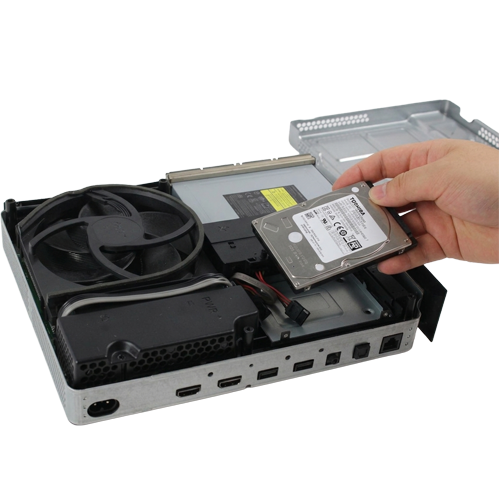
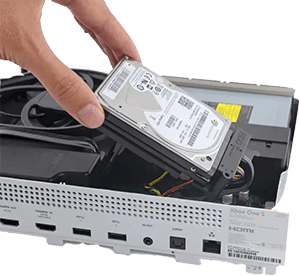
Now, back to the Xbox. Install your new (blank) hard drive and switch on your Xbox.
You will see a System Error E106 (or similar) error message appear – that is good news!
Insert the USB memory stick you have prepared with the $SystemUpdate folder and select “Trouble Shooting” and then “Offline Update”
After a few seconds, you will see a progress bar as the XBox installs the new OSU1 file to your hard drive and motherboard firmware.
Depending on the speed of the hard drive you installed, this whole process takes around 10 minutes.
Once complete, the Xbox will reboot and take you back to the dash board – congratulations – you have replaced your hard drive and installed the latest version of the Xbox OS.
No Xbox boot up animation?
When you switch on your Xbox One, there is a chance that you will be presented with just a blank screen for around 30 seconds before you get to see the dashboard. Don’t worry, this is normal.
On older Xbox One consoles, there was a need to manually install the Boot Animation Files to the hard drive but since around 2022, the process has changed and the animation files (and screen) will be automatically installed during the next console update.
If you prefer not to wait, you can download the boot animation files and follow the process below to restore the boot animation:
- Remove the hard drive from your Xbox again and connect it back to your PC or laptop.
- Open Windows Disk Management again, and you will see your Xbox hard drive with multiple partitions installed. The partition we are most interested in is the “System Update” partition.
- If no windows drive letter is assigned to the “System Update” partition, simply right click it in Disk Management and select “Assign Drive Letter” then click next to accept the default drive letter windows assigns – take a note of the drive letter than windows assigns to the partition.
- Open up the bootanimation.zip file that you downloaded earlier and you will see two folders – one called “Xbox One S and Phat” and one called “Xbox One X” – depending on what console you are working on, extract the bootanim file to both the “A” folder and “B” folder on the drive that windows created earlier.
Final Thoughts
The process of replacing your Xbox One S or Xbox One X hard drive is straight forward if you are happy to disassemble your Xbox and have a 2.5 SATA caddy. Not only does this process clear all your data it gives your Xbox One a fresh lease of life.

Advertisment
Message from our sponsors
What our customers say


Further reading

Xbox One Update Stuck
What to do when your Xbox One update is stuck In this article With Microsoft

How to make Xbox One run smoother
How to make Xbox One run smoother – speed up your gaming In this article

The Most Common PlayStation 5 Parts That Fail
What are the most common PlayStation 5 hardware failures? In this article Experiencing faulty parts

Can you sell a faulty PS5
Can you sell a faulty PS5? In this article Is you PlayStation 5 faulty? Have

How to Fix the BLOD on PS5
How to fix the BLOD on PS5 In this article PlayStation 5 has gained popularity
Get in touch