How to perform an Xbox One offline update
In this article
Where would games consoles be without the internet?
These days, the internet is the foundation of the gaming world; not only connecting players from all around the globe to play together but also allowing you to update games and systems when they are released; and with regular updates occurring it is so important you keep on top of them.
Xbox One offline update overview
Don’t worry, you can still update your Xbox console offline – all you need is some simple tools and the know how that we are happy to share with you.
Over the years, Microsoft have become known for releasing monthly updates for its Xbox One Console which not only brings along new features but improvements too.
Why an offline update?
To keep up to date with these benefits, and to remain caught up you will need to keep upgrading your Xbox One. There are of course two methods of doing this’ either download and update online, or update offline. Now offline updating is perfect for those with a weaker internet, of those that don’t want to lose any offline games.
The best way to run an offline update?
The most sought-after thing in consoles is the cooling fan system. Also, they often fail due to several reasons. The cooling fan in PS5 is responsible for keeping optimal temperatures resulting in better performance.
If a fan doesn’t work properly, your PS5 will experience overheating which can cause serious damage and performance issues.
What you need
To update your Xbox offline, you will first need to get hold of a USB stick that is more than 8gb and also formatted as a NTFS – which must be done on a windows PC. Slide this into your USB port and CLICK HERE to download the latest Xbox system update.
Where do you copy the system file?
Once done, you need to copy the OSU1 zip file to the USB stick.
Open up the zip file, right click the $SystemUpdate folder and select copy.
Now open up the USB stick, right click anywhere on the white space of your USB stick and select paste.
Once the copy is finished, eject the USB stick from your computer.
Over to the Xbox
This next part is quite important; make sure your Xbox One console is powered off.
- Plug in your USB stick.
- Then, hold down the bind button and the Eject button and then press the power button once.
- Keep holding down the eject and bind button until you have heard two power-up tones.
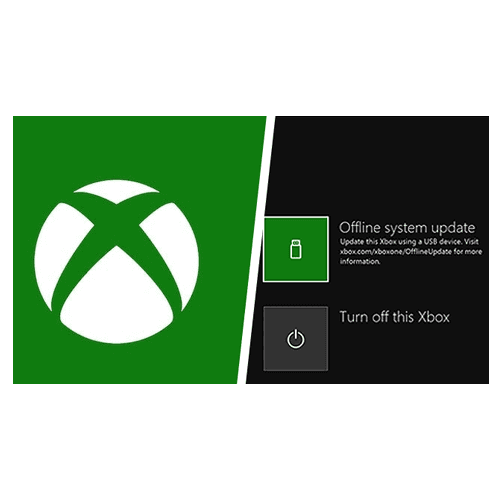
- Upon hearing these, you will then see the Xbox Startup Troubleshooter screen.
- Now select the option that says Offline System Update.
Final Reboot
You will see the update start. This will of course take several minutes, or longer depending on how long the update is; so be patient and allow your update to do what it does.
The console will restart a number of times during the update – this is normal.
After it has updated, you should then be taken back to the home screen. Congratulations, you have successfully updated your an Xbox One offline update
Message from our sponsors
What our customers say
Further reading

PlayStation 5 LAN cable not connected? Here’s What To Do
PlayStation 5 LAN cable not connected? Here’s What To Do In this article The PlayStation

How To Fix Controller Stick Drift
How To Fix Controller Stick Drift In this article The Stick Drift issue in PS5

How To Sell a Used or Faulty Xbox Series X
How To Sell a Used or Faulty Xbox Series X In this article So, you

Xbox Error Code 200 – An Easy Fix to get you gaming again
Xbox Error Code 200 and how to fix it In this article Is there anything

Xbox One Update Stuck
What to do when your Xbox One update is stuck In this article With Microsoft
Get in touch