Xbox One X Error E102 and how to fix it
In this article
Xbox One error codes can be very tiresome and worrying. As a gamer, the last thing you ever want to see is an error code to either delay you from gaming, or putting you off entirely.
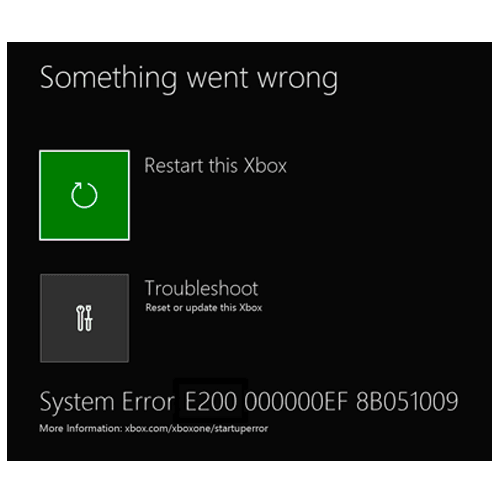
One of the most common error codes is the the Xbox One X Error E102 00000000 80070003 or E102 10030c02 8007045D which can look like a fatal code that turns up on your display after a system update.
This error code will stop you from being able to start up your console and enjoy your latest game.
Let’s be honest, normally a system update will go smoothly however the Xbox One X Error Code E102 error code can signify trouble. However don’t worry; as with many Xbox One error codes it can be fixed with some patience.
How do we fix an Xbox One X Error E102?
Sometimes a simple restart of your console, a re-installation of the update offline or running the troubleshooter can be a great place to start.
Normally, the E102 10030c02 8007045d Xbox One error code occurs at the time of the start up or the operating system update.
As a clue for you, any message with the system error E code indicate a problem with the Xbox upgrade process. This will include the E102, E105, E106 or E200 Xbox One error codes. In terms of fixing the E201 error code, lets look at some simple solutions:
Sign out and in again
There have been reports over the years that by signing out and then back into the Xbox one can help to solve error code 0x87e105dc.
By doing so, your customisations will be restored to the default factory settings and will allow you to use the console again as normal.
Run the Xbox One Startup Troubleshooter
As the name would suggest, the troubleshooter can resolve almost all of the issues that are associated with the gaming console. This is a great tool to fix the Xbox One X Error E102 10030C02 9007045d Xbox error code.
Firstly, unplug the power cord of the Xbox; you will need to make sure your console is completely turned off – and then wait for 30 to 60 seconds.
Hold down the bind and eject buttons, then tap the power button while still holding the bind and eject buttons. Upon hearing two power up tones, you will then see the start up trouble shooter on your screen. Now you can release the bind and eject buttons.
Then simply follow the instructions on the screen to proceed.
Clear the Xbox One Cache Memory
To do this, we need to completely power down the Xbox. Press and hold the Xbox button on your gaming controller and turn off the console.
Once your Xbox is completely shut down, unplug the power cable from the rear of the Xbox.
Leave your console unplugged for about two minutes. This pause allows the system to reset and clear its cache.
Connect back up the power cable and switch the Xbox One back one again.
Conduct an Offline System Update
Now we won’t go into too much detail on how to do this here as we recently wrote a blog post on this subject. Be sure to click HERE to see our full blog on how to conduct an offline system update.
Message from our sponsors
What our customers say
Further reading

How to replace Xbox one hard drive – the easy way
How to replace Xbox One hard drive – 2025 Guide In this article Over time,

P55 Faulty Power Supply and How to Fix It
PS5 Faulty Power Supply Fix Guide In this article The Sony PlayStation 5 or PS5

How to repair a faulty PS5 with UART
How to repair a faulty PS5 with UART In this article As games consoles become

How to play PS3 games on PS5
How to play PS3 games on PS5 In this article Imagine you just bought a

How To Fix Controller Stick Drift
How To Fix Controller Stick Drift In this article The Stick Drift issue in PS5
Get in touch